> ## Documentation Index
> Fetch the complete documentation index at: https://docs.accessowl.com/llms.txt
> Use this file to discover all available pages before exploring further.
# Overview
This guide explains how to add and configure your applications within AccessOwl. It also covers key concepts like bulk importing, assigning Business Owners/Admins, and using templates—without overriding any existing provisioning workflows you might have.
## App Status
Officially managed by AccessOwl and visible in the app catalog for all employees. These apps include offboarding reminders and provisioning features.
Appear if AccessOwl detects usage through OAuth or domain sign-ups. They are not fully managed.
Mark an app as Assigned if you want it tracked and controlled for user provisioning, offboarding, or audits.
Apps that are ignored won't trigger revocation notifications when a user is being offboarded.
Mark an app as Ignored if it’s not used for typical business purposes, such as travel or lifestyle apps.
***
## Adding an Application
AccessOwl can detect apps you use via Google Workspace OAuth logs. If an app doesn’t show in the list of discovered applications:
* **Create a custom entry**: Manually add it in AccessOwl.
* **Use the built-in catalog**: If the vendor exists in AccessOwl’s list, select it to speed things up.
You can still manage apps that don’t offer a direct integration. Instead of automatically provisioning user access it will notify the assigned application admins.
## Integration Types
Integrated apps offer various functionalities like provisioning and user sync. If an app is already connected, hover over the “Connected” status icon to view the integration type, or check the app overview for full details on the integration's capabilities.
Learn more about AccessOwl's integrations.
Adding or integrating apps **does not** interfere with existing workflows in other provisioning tools such as Okta.
### Filtering by Integration
Your managed applications now include a filter for **sync** and **provisioning** integrations. Use this filter to narrow down your assigned apps by integration type, making it easier to see which of your managed apps are fully automated versus manually managed.
## Vendor Management
AccessOwl helps you manage vendor information by allowing you to record details like risk levels, renewal dates, and compliance notes. Use the **Vendor Details** section to add key information such as SOC 2 status, data location, or contract details. This keeps all vendor and application data centralized for easier renewal decisions and audits.
To store additional information, such as user attributes, telephone numbers, or billing IDs, use the Markdown-enabled **Notes** field. You can also upload files like contracts or audit reports and bookmark important vendor URLs, ensuring all relevant details are easily accessible.
## FAQ
For integrations with user sync, AccessOwl updates user lists approximately every 3 hours.
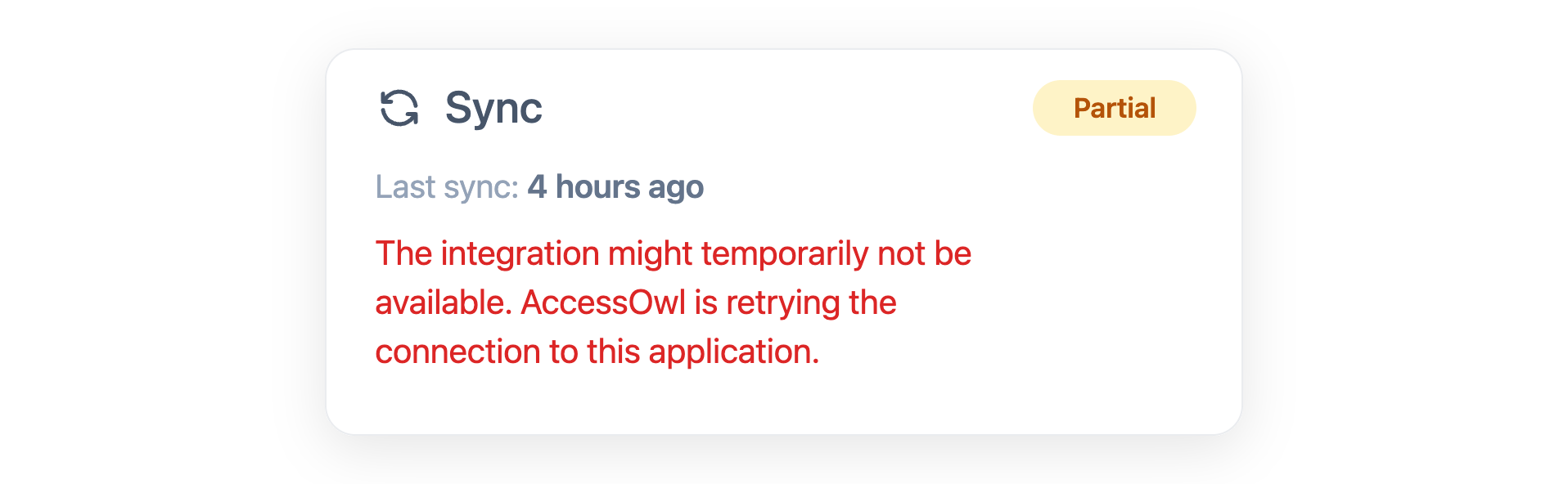
In most cases, no. A **Partial** status simply means access sync is still working, but the most recent sync attempt did not fully complete. This can happen for a number of routine reasons, for example the application being briefly unavailable when AccessOwl tried to reach it.
AccessOwl keeps retrying the connection automatically, so the status clears on its own once the next sync succeeds. There is nothing you need to do, and no need to reconnect the integration.
When you open the integration, you'll see status indicators in two places:
* The status on the **left** is the integration's overall connection state. A transient connection error here clears on its own once the next sync succeeds, so there is no need to reconnect.
* The **green** indicators on the **right** show each capability that is set up, such as Sync and Provisioning, along with the time of its last successful sync. For Google Workspace and Microsoft 365, this also includes the User Directory capability.
 AccessOwl identifies apps through OAuth logs from Google or Microsoft. If an app doesn’t support these sign-in methods, it won’t appear in the discovered apps list. However, you can manually add it from the app templates or as a custom app.
If a team stops using an application and you want to remove access for several users at once:
1. Open the application page in AccessOwl.
2. Go to the **Assigned Users** tab.
3. Select the users you want to remove.
4. Click **Revoke Access**.
This removes access for all selected users in one action. For apps with an active integration, the revocation happens automatically. For apps without an integration, the application admin is notified to handle the removal.
Yes. Open the application and go to the **Discovered Users** tab. Tick the checkbox in the table header to select every discovered user, or tick individual rows for a subset. Click **Set Access** and choose the access to assign. This promotes all selected users from Discovered to Assigned in one step.
You have three options depending on what you need:
* **App inventory:** On the **Applications** page, click **Export** in the top right. This gives you a single CSV covering every app, both managed and discovered, with app-level details such as status, user count, and costs. It does not include who has access or their permissions.
* **Who has access, across all apps:** Go to the **Reports** tab in the admin interface and export the accesses report to CSV. This lists every access state org-wide, one row per access, including the permission level and whether it counts as elevated access. It covers both assigned access and access detected through shadow IT discovery.
* **Who has access, for a single app:** Open the application, go to the **Assigned Users** tab, and click **Export**.
The access export from the **Reports** tab includes historical access states, so a department review can return rows for former users and access that has already ended. For a current-only list, filter out rows that have an end date populated (ended access), exclude Discovered apps, then filter by department. For programmatic exports, see the [List access states API endpoint](/api-reference/access-states/list).
AccessOwl identifies apps through OAuth logs from Google or Microsoft. If an app doesn’t support these sign-in methods, it won’t appear in the discovered apps list. However, you can manually add it from the app templates or as a custom app.
If a team stops using an application and you want to remove access for several users at once:
1. Open the application page in AccessOwl.
2. Go to the **Assigned Users** tab.
3. Select the users you want to remove.
4. Click **Revoke Access**.
This removes access for all selected users in one action. For apps with an active integration, the revocation happens automatically. For apps without an integration, the application admin is notified to handle the removal.
Yes. Open the application and go to the **Discovered Users** tab. Tick the checkbox in the table header to select every discovered user, or tick individual rows for a subset. Click **Set Access** and choose the access to assign. This promotes all selected users from Discovered to Assigned in one step.
You have three options depending on what you need:
* **App inventory:** On the **Applications** page, click **Export** in the top right. This gives you a single CSV covering every app, both managed and discovered, with app-level details such as status, user count, and costs. It does not include who has access or their permissions.
* **Who has access, across all apps:** Go to the **Reports** tab in the admin interface and export the accesses report to CSV. This lists every access state org-wide, one row per access, including the permission level and whether it counts as elevated access. It covers both assigned access and access detected through shadow IT discovery.
* **Who has access, for a single app:** Open the application, go to the **Assigned Users** tab, and click **Export**.
The access export from the **Reports** tab includes historical access states, so a department review can return rows for former users and access that has already ended. For a current-only list, filter out rows that have an end date populated (ended access), exclude Discovered apps, then filter by department. For programmatic exports, see the [List access states API endpoint](/api-reference/access-states/list).