> ## Documentation Index
> Fetch the complete documentation index at: https://docs.accessowl.com/llms.txt
> Use this file to discover all available pages before exploring further.
# Permissions
### Setting up a permission structure
AccessOwl offers three different ways to map out an application permission structure:
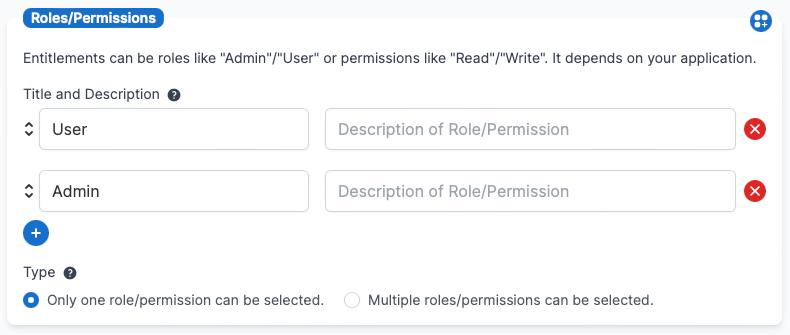
One set of permissions per application
This is the simplest form where the application has a set of permissions. You can specify whether only one permission can be selected or multiple can be selected.
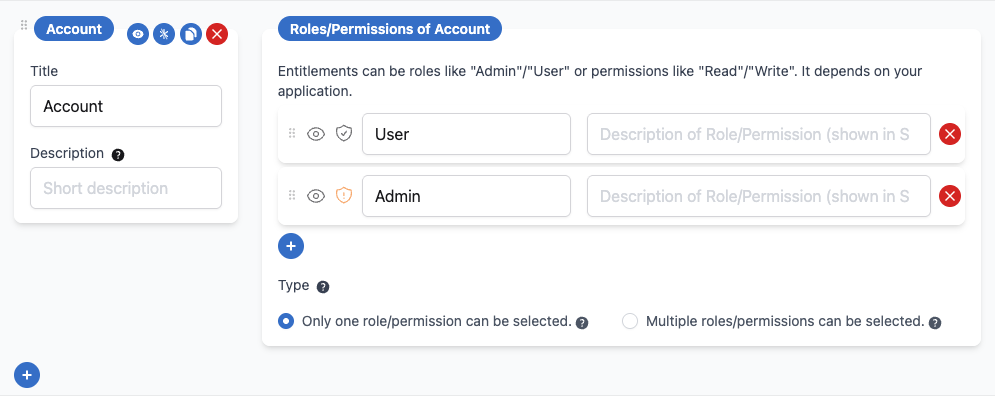
 You can add an extra layer between application and permissions. It's often used for vaults, repos, folders or similar resources which can have different permissions.
 This involves grouping resources together. A parent resource holds the right set of permissions, and the child resources inherit them.
 Usually all permissions are requestable by default. You can adjust that individually.
***
### Mandatory Resources
Some applications require users to have a base-level access before they can request additional permissions. For example, a user might need a Salesforce "Profile" before they can request specific licenses, or a 1Password "Account" before they can access individual vaults.
You can mark root-level resources as **mandatory** to enforce this dependency. When a resource is marked mandatory:
* Users must either already have access to the mandatory resource, or include it in their request
* If a user tries to request other permissions without the mandatory resource, they'll see a validation error listing the required permissions
* Approved requests will wait in a "Pending dependency" status until all mandatory resources are provisioned
#### How to Configure
In the Permissions editor, toggle the asterisk icon next to a root-level resource to mark it as mandatory. The fieldset gets a red left border so that mandatory resources are easy to spot, and the filled/slashed asterisk shows whether the resource is required or optional.
Only root-level, requestable resources can be marked as mandatory. Nested resources cannot be set as mandatory.
***
### Editing and removing permissions
An application's structure has two levels: **resources** (the items or objects, such as a vault, repository, or seat group) and the **permission entitlements** within them (the access levels, such as Admin or Read).
You have two distinct ways to take a permission entitlement out of circulation:
* **Hide (make non-requestable):** the permission entitlement no longer appears as an option when someone submits a self-service request, but it stays available for admins to assign through Access Templates. Use this when you still want to grant the access during onboarding but stop people requesting it directly.
* **Delete:** removes the permission entitlement (or the whole resource) from the application's structure entirely.
#### What happens when you delete a resource or permission entitlement
Deleting a resource or permission entitlement:
* Removes it from any Access Templates that referenced it. The Access Template itself stays intact, only the deleted item is dropped from it.
* Does not affect your historical access reports. Past access data stays complete and readable, so your audit trail is preserved.
#### Pending requests when you edit the structure
AccessOwl treats an in-flight request differently depending on which level you change:
* **Resources:** you cannot delete a resource while it still has a request **pending approval**. Approve or reject the pending request first, and the delete option becomes available again.
* **Permission entitlements:** you can delete or rename a permission entitlement at any time, including while a request is pending.
Deleting or renaming a permission entitlement automatically **denies** any access request that is currently pending approval for it. Resolve or flag in-flight requests before changing a permission entitlement people are actively requesting.
To clear all of an application's pending requests at once, archive the application using **Archive Application** on its edit screen. Archiving closes every pending approval for that app, so only use it when you are rebuilding the application from scratch, not for routine edits.
***
### FAQ
A resource cannot be deleted while it still has an access request **pending approval**. AccessOwl blocks the delete until that request is resolved. Approve or reject the pending request, then the delete option appears again.
Permission entitlements work differently: you can delete or rename a permission entitlement even while a request is pending, and that pending request is automatically denied. To clear several pending requests on an app at once, archiving the application closes all of its pending approvals (see the note above).
There is no bulk import for the permission **structure** itself. The **Import** button on an application is for **user lists**: it maps users onto permissions that already exist, and the permission names in your file must match the ones in AccessOwl exactly.
So the order is always: build the permission structure first in the Permissions editor, then import the user list on top to assign people. If you have a large set of roles to set up, contact AccessOwl support with the list and the team can help get the structure in place.
Usually all permissions are requestable by default. You can adjust that individually.
***
### Mandatory Resources
Some applications require users to have a base-level access before they can request additional permissions. For example, a user might need a Salesforce "Profile" before they can request specific licenses, or a 1Password "Account" before they can access individual vaults.
You can mark root-level resources as **mandatory** to enforce this dependency. When a resource is marked mandatory:
* Users must either already have access to the mandatory resource, or include it in their request
* If a user tries to request other permissions without the mandatory resource, they'll see a validation error listing the required permissions
* Approved requests will wait in a "Pending dependency" status until all mandatory resources are provisioned
#### How to Configure
In the Permissions editor, toggle the asterisk icon next to a root-level resource to mark it as mandatory. The fieldset gets a red left border so that mandatory resources are easy to spot, and the filled/slashed asterisk shows whether the resource is required or optional.
Only root-level, requestable resources can be marked as mandatory. Nested resources cannot be set as mandatory.
***
### Editing and removing permissions
An application's structure has two levels: **resources** (the items or objects, such as a vault, repository, or seat group) and the **permission entitlements** within them (the access levels, such as Admin or Read).
You have two distinct ways to take a permission entitlement out of circulation:
* **Hide (make non-requestable):** the permission entitlement no longer appears as an option when someone submits a self-service request, but it stays available for admins to assign through Access Templates. Use this when you still want to grant the access during onboarding but stop people requesting it directly.
* **Delete:** removes the permission entitlement (or the whole resource) from the application's structure entirely.
#### What happens when you delete a resource or permission entitlement
Deleting a resource or permission entitlement:
* Removes it from any Access Templates that referenced it. The Access Template itself stays intact, only the deleted item is dropped from it.
* Does not affect your historical access reports. Past access data stays complete and readable, so your audit trail is preserved.
#### Pending requests when you edit the structure
AccessOwl treats an in-flight request differently depending on which level you change:
* **Resources:** you cannot delete a resource while it still has a request **pending approval**. Approve or reject the pending request first, and the delete option becomes available again.
* **Permission entitlements:** you can delete or rename a permission entitlement at any time, including while a request is pending.
Deleting or renaming a permission entitlement automatically **denies** any access request that is currently pending approval for it. Resolve or flag in-flight requests before changing a permission entitlement people are actively requesting.
To clear all of an application's pending requests at once, archive the application using **Archive Application** on its edit screen. Archiving closes every pending approval for that app, so only use it when you are rebuilding the application from scratch, not for routine edits.
***
### FAQ
A resource cannot be deleted while it still has an access request **pending approval**. AccessOwl blocks the delete until that request is resolved. Approve or reject the pending request, then the delete option appears again.
Permission entitlements work differently: you can delete or rename a permission entitlement even while a request is pending, and that pending request is automatically denied. To clear several pending requests on an app at once, archiving the application closes all of its pending approvals (see the note above).
There is no bulk import for the permission **structure** itself. The **Import** button on an application is for **user lists**: it maps users onto permissions that already exist, and the permission names in your file must match the ones in AccessOwl exactly.
So the order is always: build the permission structure first in the Permissions editor, then import the user list on top to assign people. If you have a large set of roles to set up, contact AccessOwl support with the list and the team can help get the structure in place.