> ## Documentation Index
> Fetch the complete documentation index at: https://docs.accessowl.com/llms.txt
> Use this file to discover all available pages before exploring further.
# User Onboarding
## Introduction
You can start employee onboarding in three ways: via Slack, via the web interface, or automatically via an HRIS integration:
To **onboard** an employee via Slack:
1. Go to the AccessOwl home tab and click **"Onboard New User"**, or use the `/onboard` command. This opens the web onboarding flow in your browser.
2. Enter the user's name, email, manager, and the provisioning start date.
3. Choose the applications and permissions the user needs. You can also select one or more [access templates](/guides/onboarding-offboarding/access-templates).
The manager is notified of this selection and can [request additional applications and permissions](/guides/requests/access-requests).
To **onboard via the web interface**:
1. Go to [Users](https://app.accessowl.io/users) in the admin interface.
2. Click **"Onboard User"**.
3. Enter the user's details: name, email, manager, and provisioning start date.
4. Choose how to proceed:
* **"Let manager select apps"**: The manager is notified to select templates and applications.
* **"Create and continue"**: You proceed to select templates and applications yourself.
5. If you chose "Create and continue": Select one or more [access templates](/guides/onboarding-offboarding/access-templates), then adjust individual applications if needed.
6. Confirm the onboarding.
The web interface allows selecting **multiple access templates** for a single onboarding, combining their applications and permissions. This is useful when a role spans multiple teams.
You can enable **zero-touch onboarding** by [integrating your HRIS](/integrations/all/HRIS) directly with AccessOwl. We support integrations with over 40 providers.
Once integrated, AccessOwl automatically receives the start date, name, email, and manager. If you've configured [auto-assignment rules](/guides/onboarding-offboarding/access-templates#auto-assignment-rules-hris) on your access templates, matching templates are applied automatically based on the employee's attributes (department, team, job title, etc.).
New onboardings are announced in a definable HR Slack notification channel. If auto-assignment didn't select templates, someone can take over and manually select templates or applications. The message updates to show who's responsible.
***
AccessOwl ensures that a Google Workspace or Office 365 email exists for the new hire before provisioning begins. If no email is found and neither service is part of the onboarding template, provisioning is paused. You can manually create the email, sync AccessOwl, and resume the onboarding process without delays.
If an application has [mandatory resources](/guides/applications/roles-permissions#mandatory-resources) configured, you must include them in the onboarding selection. If mandatory resources are missing, you'll see a validation error listing the required permissions.
## Onboarding Contractors and External Users
If you need to onboard a contractor, consultant, or any user who is not in your HRIS and does not share your organization's email domain, you can create them as an external user in AccessOwl.
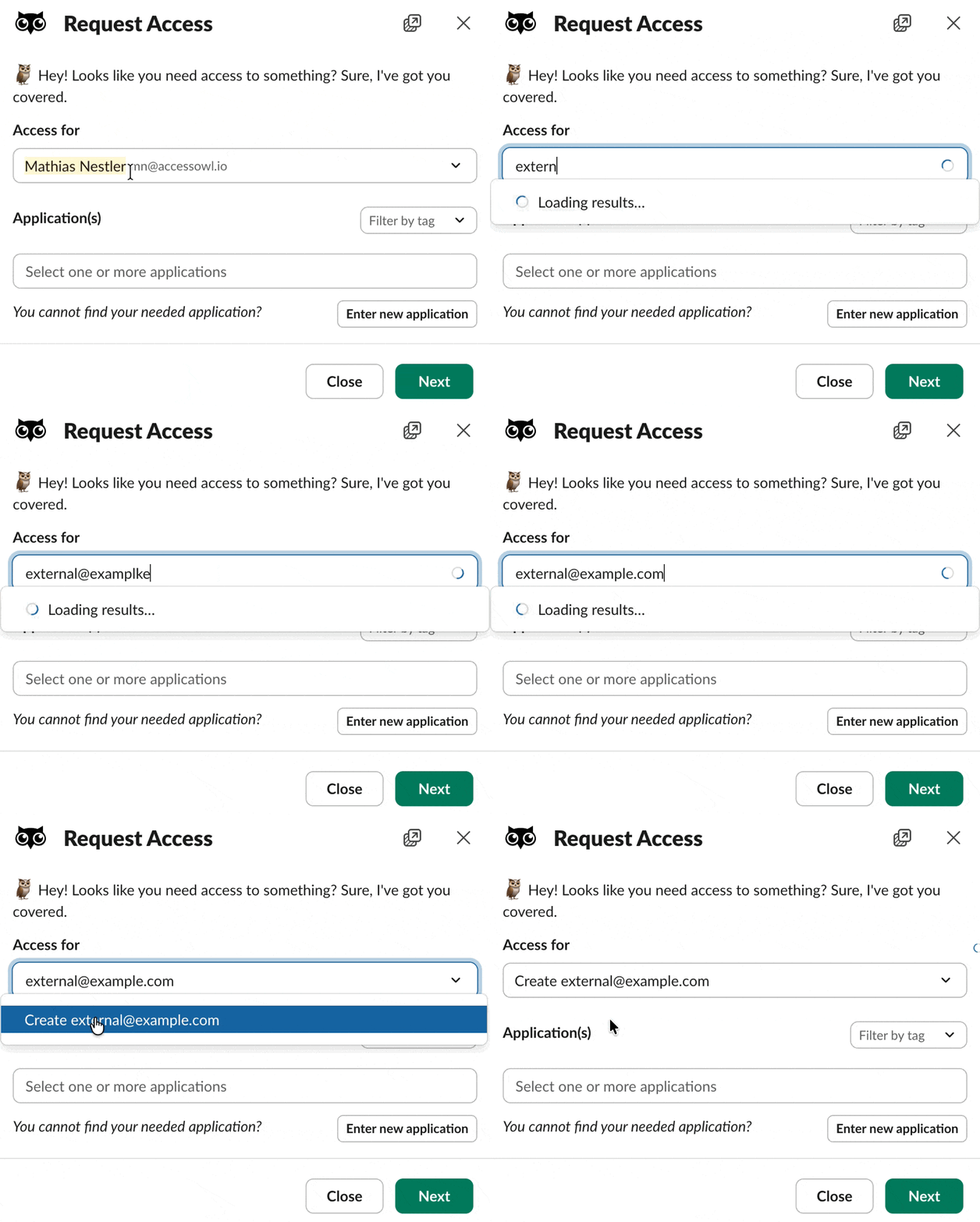 Go to the AccessOwl home tab in Slack and click **Request/Change Access**
In the **Access for** field, type the full email address of the contractor, including their external domain. You will see a **"Create \[email you typed]"** option appear. Select it to create the external user in AccessOwl only. The user will not be added to any of your directory workspaces
Select one or more applications that you need for this user. You can also add them to applications that are not automated by AccessOwl, so you have a complete overview of their access
Click **Next**. The request will be processed like a regular access request
Having all contractor access tracked in AccessOwl gives you a centralized report view of who has access to what, which is useful for security reviews and compliance
## Access Templates
[Access Templates](/guides/onboarding-offboarding/access-templates) define which applications and permissions a new hire receives based on their job role. Combined with an HRIS integration, they enable **zero-touch onboarding**-new employees automatically receive the right access without manual intervention.
Key features:
* **Application bundles**: Define which applications and permissions each role requires.
* **Auto-assignment rules**: Automatically apply templates based on HRIS attributes (department, team, job title).
* **Conflict resolution**: Configure attribute priority to handle overlapping permissions.
* **Simulator**: Test which templates apply before actual onboarding.
See the [Access Templates guide](/guides/onboarding-offboarding/access-templates) for setup instructions.
## Best Practices for Using HRIS Integrations
AccessOwl's integration with HRIS systems like BambooHR, HiBob, or Personio makes onboarding easier by automating account creation for new hires. Follow these steps to maximize efficiency:
1. **Add User to HRIS**\
HR typically adds the new employee to the HRIS system before their first day to set up contracts, payroll, and other necessary details.
You don't need to include the HRIS itself in any AccessOwl templates.
2. **Receive Slack Notification**\
Once the user is added to the HRIS, AccessOwl automatically sends a Slack notification to the designated channel.\
No manual action is required to initiate onboarding.
3. **Select Access Templates**
HR or IT can respond to the Slack notification by selecting the appropriate access templates and onboarding date. Alternatively, if you've configured [auto-assignment rules](/guides/onboarding-offboarding/access-templates#auto-assignment-rules-hris), matching templates are applied automatically (zero-touch).
This ensures the new hire receives the correct tools and permissions.
4. **Automated Provisioning**\
AccessOwl automatically provisions integrated apps like Google Workspace and Slack.\
For apps without integration, respective admins are notified via Slack for manual setup.
5. **Onboarding Date**\
Provisioning begins on the scheduled onboarding date, ensuring everything is ready for the new hire's first day.
## FAQ
By default, HR or Org Admins select applications for new users. If you'd prefer managers to handle this task, you can adjust that in settings.
For HRIS onboardings, templates can be auto-selected based on employee attributes if you configure [auto-assignment rules](/guides/onboarding-offboarding/access-templates#auto-assignment-rules-hris).
Yes, AccessOwl can restrict permissions so that only HR can manage onboarding and offboarding processes. By default, both HR and Org Admins can perform these tasks.
The email with the new hire's temporary login credentials is sent to their personal email address, and some mail providers move it to the spam or junk folder. Because the message carries login credentials, spam filters can score it higher than regular mail, and each provider (Gmail, Outlook, iCloud) filters differently.
AccessOwl follows email deliverability best practices, but the final inbox placement is decided by the recipient's mail provider. The practical step is to tell new hires to check their spam or junk folder on day one, for example as part of your onboarding notices.
During onboarding, you can set a specific **provisioning date** for granting access. Approvals are processed immediately, but accounts and permissions will only be activated on the date you select. This ensures everything is ready for the new hire's first day.
Provisioning runs at the exact date and time AccessOwl has for the onboarding.
* When you schedule an onboarding manually in Slack or the web interface, you choose both the date and the time, and provisioning starts at that time.
* For HRIS onboardings, the time comes from your HRIS. Some providers send a specific start time, which AccessOwl uses as-is. Others send only a date with no time, in which case provisioning defaults to midnight UTC (00:00 UTC) on the start date.
If you need provisioning to run at a specific local time, set the time explicitly when scheduling, or check whether your HRIS includes a start time in what it sends to AccessOwl.
Open the user's profile in the admin interface. Once the user's status is **Offboarded**, a **Reactivate** button appears in the top-right corner.
If the user is still in **Offboarding** status (offboarding steps remaining), click **Skip Remaining** on their profile. The status moves to **Offboarded** and the **Reactivate** button appears in the top-right corner.
Click **Reactivate**. This is access-neutral: it sets the user back to active without restoring any of their previous access or stopping existing revocations. The warning saying so is expected.
Add the applications and permissions they need (Google Workspace, Slack, and so on), the same way you would for any user.
To provision that access on a future date instead, after reactivating use the three-dot menu in the top right to schedule the onboarding, where you can set a provisioning date and select an [access template](/guides/onboarding-offboarding/access-templates).
Open the user's profile in the admin interface and click **Reschedule Onboarding** in the middle of the profile. You can then set the provisioning date and select the templates and applications, including any apps that were missing from the original selection.
This happens when no applications were selected when the onboarding started, so the flow never completed. Open the user's profile and click **Cancel** on the onboarding banner. The user switches to **Active** and keeps all their current access; cancelling only closes out the unfinished onboarding flow.
This can happen when a start date changes in your HRIS and the new date doesn't sync through to an onboarding that was already scheduled, so the profile keeps showing the original (sometimes already past) date.
You can fix it without waiting for a sync. Open the user's profile in the admin interface, click the **three dots** in the top right, and select **Retrigger onboarding**. You can then choose the provisioning date you want and select the applications to assign.
Go to the AccessOwl home tab in Slack and click **Request/Change Access**
In the **Access for** field, type the full email address of the contractor, including their external domain. You will see a **"Create \[email you typed]"** option appear. Select it to create the external user in AccessOwl only. The user will not be added to any of your directory workspaces
Select one or more applications that you need for this user. You can also add them to applications that are not automated by AccessOwl, so you have a complete overview of their access
Click **Next**. The request will be processed like a regular access request
Having all contractor access tracked in AccessOwl gives you a centralized report view of who has access to what, which is useful for security reviews and compliance
## Access Templates
[Access Templates](/guides/onboarding-offboarding/access-templates) define which applications and permissions a new hire receives based on their job role. Combined with an HRIS integration, they enable **zero-touch onboarding**-new employees automatically receive the right access without manual intervention.
Key features:
* **Application bundles**: Define which applications and permissions each role requires.
* **Auto-assignment rules**: Automatically apply templates based on HRIS attributes (department, team, job title).
* **Conflict resolution**: Configure attribute priority to handle overlapping permissions.
* **Simulator**: Test which templates apply before actual onboarding.
See the [Access Templates guide](/guides/onboarding-offboarding/access-templates) for setup instructions.
## Best Practices for Using HRIS Integrations
AccessOwl's integration with HRIS systems like BambooHR, HiBob, or Personio makes onboarding easier by automating account creation for new hires. Follow these steps to maximize efficiency:
1. **Add User to HRIS**\
HR typically adds the new employee to the HRIS system before their first day to set up contracts, payroll, and other necessary details.
You don't need to include the HRIS itself in any AccessOwl templates.
2. **Receive Slack Notification**\
Once the user is added to the HRIS, AccessOwl automatically sends a Slack notification to the designated channel.\
No manual action is required to initiate onboarding.
3. **Select Access Templates**
HR or IT can respond to the Slack notification by selecting the appropriate access templates and onboarding date. Alternatively, if you've configured [auto-assignment rules](/guides/onboarding-offboarding/access-templates#auto-assignment-rules-hris), matching templates are applied automatically (zero-touch).
This ensures the new hire receives the correct tools and permissions.
4. **Automated Provisioning**\
AccessOwl automatically provisions integrated apps like Google Workspace and Slack.\
For apps without integration, respective admins are notified via Slack for manual setup.
5. **Onboarding Date**\
Provisioning begins on the scheduled onboarding date, ensuring everything is ready for the new hire's first day.
## FAQ
By default, HR or Org Admins select applications for new users. If you'd prefer managers to handle this task, you can adjust that in settings.
For HRIS onboardings, templates can be auto-selected based on employee attributes if you configure [auto-assignment rules](/guides/onboarding-offboarding/access-templates#auto-assignment-rules-hris).
Yes, AccessOwl can restrict permissions so that only HR can manage onboarding and offboarding processes. By default, both HR and Org Admins can perform these tasks.
The email with the new hire's temporary login credentials is sent to their personal email address, and some mail providers move it to the spam or junk folder. Because the message carries login credentials, spam filters can score it higher than regular mail, and each provider (Gmail, Outlook, iCloud) filters differently.
AccessOwl follows email deliverability best practices, but the final inbox placement is decided by the recipient's mail provider. The practical step is to tell new hires to check their spam or junk folder on day one, for example as part of your onboarding notices.
During onboarding, you can set a specific **provisioning date** for granting access. Approvals are processed immediately, but accounts and permissions will only be activated on the date you select. This ensures everything is ready for the new hire's first day.
Provisioning runs at the exact date and time AccessOwl has for the onboarding.
* When you schedule an onboarding manually in Slack or the web interface, you choose both the date and the time, and provisioning starts at that time.
* For HRIS onboardings, the time comes from your HRIS. Some providers send a specific start time, which AccessOwl uses as-is. Others send only a date with no time, in which case provisioning defaults to midnight UTC (00:00 UTC) on the start date.
If you need provisioning to run at a specific local time, set the time explicitly when scheduling, or check whether your HRIS includes a start time in what it sends to AccessOwl.
Open the user's profile in the admin interface. Once the user's status is **Offboarded**, a **Reactivate** button appears in the top-right corner.
If the user is still in **Offboarding** status (offboarding steps remaining), click **Skip Remaining** on their profile. The status moves to **Offboarded** and the **Reactivate** button appears in the top-right corner.
Click **Reactivate**. This is access-neutral: it sets the user back to active without restoring any of their previous access or stopping existing revocations. The warning saying so is expected.
Add the applications and permissions they need (Google Workspace, Slack, and so on), the same way you would for any user.
To provision that access on a future date instead, after reactivating use the three-dot menu in the top right to schedule the onboarding, where you can set a provisioning date and select an [access template](/guides/onboarding-offboarding/access-templates).
Open the user's profile in the admin interface and click **Reschedule Onboarding** in the middle of the profile. You can then set the provisioning date and select the templates and applications, including any apps that were missing from the original selection.
This happens when no applications were selected when the onboarding started, so the flow never completed. Open the user's profile and click **Cancel** on the onboarding banner. The user switches to **Active** and keeps all their current access; cancelling only closes out the unfinished onboarding flow.
This can happen when a start date changes in your HRIS and the new date doesn't sync through to an onboarding that was already scheduled, so the profile keeps showing the original (sometimes already past) date.
You can fix it without waiting for a sync. Open the user's profile in the admin interface, click the **three dots** in the top right, and select **Retrigger onboarding**. You can then choose the provisioning date you want and select the applications to assign.