> ## Documentation Index
> Fetch the complete documentation index at: https://docs.accessowl.com/llms.txt
> Use this file to discover all available pages before exploring further.
# Access Requests
The access request workflow can be split into three phases.
## 1. Request
Users can request accesses on-demand using the shortcut `/request` or a button on the home tab of the AccessOwl Slack app. Requests can also be made on the web, directly from the [App Hub](/guides/app-hub).
Here's how it works:
1. *Only if you don't have a manager set:* You're asked to provide the name of your manager.
2. By default access requests need to be approved by your direct manager.
3. After approval, provisioning requests with all the necessary details are sent to the responsible application admins or to AccessOwl for automated provisioning.
Access requests can be denied/rejected by the manager or application admin. However, you will be kept up-to-date via Slack messages about the request status. You can also track your requests under **My Requests** in the [App Hub](/guides/app-hub), where you see the current status and who to reach out to.
If the app you need isn't listed in the request form, you'll see an **Enter new application** option. This adds a **custom application** (an internal or in-house app of yours) so it can be requested. It is not a way to request a SaaS app that AccessOwl does not support yet. For more on adding apps, see [Adding an Application](/guides/applications/applications-overview#adding-an-application). If you need an integration for an app that isn't available yet, contact AccessOwl.
### Special Request Type: No Permission Selection Required
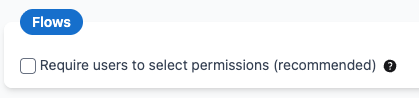
For certain applications, you may not want users to choose their own permission level. Instead, let them describe the access they need in a freeform text field. The application admin can then review the request and assign the correct permission level.
#### Setup
To set up an application to not require a permission selection, open the app's permissions and unselect the following checkbox:
 #### Example
### Mandatory Resources
Some applications have [mandatory resources](/guides/applications/roles-permissions#mandatory-resources) that must be requested before other permissions can be granted. If you try to request access without including the required mandatory resources, you'll see a validation error listing the permissions you need to include.
If you already have access to the mandatory resource, you can request additional permissions without including it again.
## 2. Approval
AccessOwl offers different options for approval policies, which are managed by your AccessOwl [Org Admins](/general/roles). The default option is manager approval. A manager will be asked to approve your access request. They have the option to either **approve** or **deny**. You will receive a notification after the approver has made a decision.
## 3. Provisioning
The final step is the creation of the requested access. Depending on whether the application is managed by an internal application administrator or via an integration of AccessOwl, there are two options:
After the access has been approved, the application administrator receives a notification in Slack. They have the option to **grant** or **reject** the access. You will be informed when the application administrator has finished the task. If rejected, you will also be provided with a rejection reason.
After the access has been approved, AccessOwl will start the access provisioning automatically. The user will be informed when the access has been created.
AccessOwl offers different options for automating provisioning. The most common are integration accounts, alternatively AccessOwl also integrates with tools such as Okta. [Learn more about AccessOwls integrations.](/integrations/overview)
Added an integration after requests already came in? Open the pending request and click **Retry Automation** to run the now-available automation. You don't need to resubmit the request.
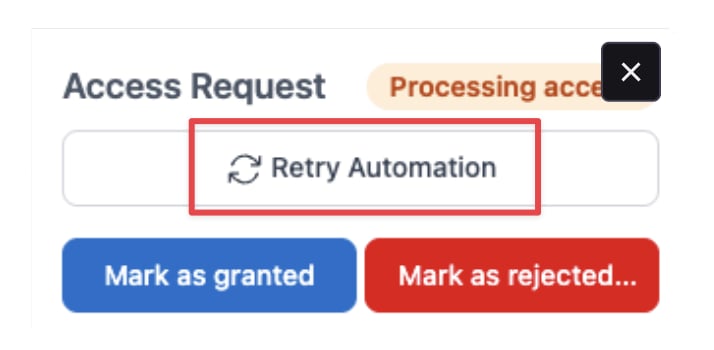 When an app has no AccessOwl integration, **Mark as granted** closes the record in AccessOwl only. It does not add the user in the app. Use it after you have granted the access manually, otherwise AccessOwl will show access the user does not actually have.
### Pending Dependency Status
When you request multiple permissions and some depend on [mandatory resources](/guides/applications/roles-permissions#mandatory-resources), your requests may show a **Pending dependency** status. This means the request has been approved but is waiting for the mandatory resource to be provisioned first.
Once the mandatory resource is granted, dependent requests will automatically proceed to provisioning.
If a mandatory resource request is denied or rejected, all dependent requests waiting on it will be automatically cancelled.
Stuck requests are surfaced on the AccessOwl admin dashboard. The **Alerts** panel in the **Pending** section highlights any access request that has been in `Pending dependency` for more than 5 days, with a link to the affected request so an admin can step in.
## Revoke Your Own Access
If you no longer need an access you were granted (for example, temporary access you requested for a one-off task, or an app you used in a previous role), you can revoke it yourself directly from Slack.
Go to the AccessOwl home tab in Slack.
Use the **Revoke Access** button on the home tab.
Choose your own user, then pick the app and permission you want to give up.
**Revocations have no approval flow.** This is not specific to self-revocations. A manager can revoke access for any of their direct reports. See the **Revoke app access** and **Manage access of direct reports** rows in [Roles and Permissions](/general/roles).
Once a revocation is confirmed, AccessOwl deprovisions the access automatically if the app has an integration, or notifies the application admin to remove it.
When an app has no AccessOwl integration, **Mark as granted** closes the record in AccessOwl only. It does not add the user in the app. Use it after you have granted the access manually, otherwise AccessOwl will show access the user does not actually have.
### Pending Dependency Status
When you request multiple permissions and some depend on [mandatory resources](/guides/applications/roles-permissions#mandatory-resources), your requests may show a **Pending dependency** status. This means the request has been approved but is waiting for the mandatory resource to be provisioned first.
Once the mandatory resource is granted, dependent requests will automatically proceed to provisioning.
If a mandatory resource request is denied or rejected, all dependent requests waiting on it will be automatically cancelled.
Stuck requests are surfaced on the AccessOwl admin dashboard. The **Alerts** panel in the **Pending** section highlights any access request that has been in `Pending dependency` for more than 5 days, with a link to the affected request so an admin can step in.
## Revoke Your Own Access
If you no longer need an access you were granted (for example, temporary access you requested for a one-off task, or an app you used in a previous role), you can revoke it yourself directly from Slack.
Go to the AccessOwl home tab in Slack.
Use the **Revoke Access** button on the home tab.
Choose your own user, then pick the app and permission you want to give up.
**Revocations have no approval flow.** This is not specific to self-revocations. A manager can revoke access for any of their direct reports. See the **Revoke app access** and **Manage access of direct reports** rows in [Roles and Permissions](/general/roles).
Once a revocation is confirmed, AccessOwl deprovisions the access automatically if the app has an integration, or notifies the application admin to remove it.