> ## Documentation Index
> Fetch the complete documentation index at: https://docs.accessowl.com/llms.txt
> Use this file to discover all available pages before exploring further.
# Github
AccessOwl syncs the list of repositories in your connected GitHub organizations so that your users can request them easily, and syncs the members of those organizations along with their permissions. AccessOwl does not provision or deprovision GitHub accounts, see the FAQ below.
## Capabilities
AccessOwl periodically syncs the permissions schema of an application.
AccessOwl periodically syncs a list of users along with their assigned permissions.
## Setup
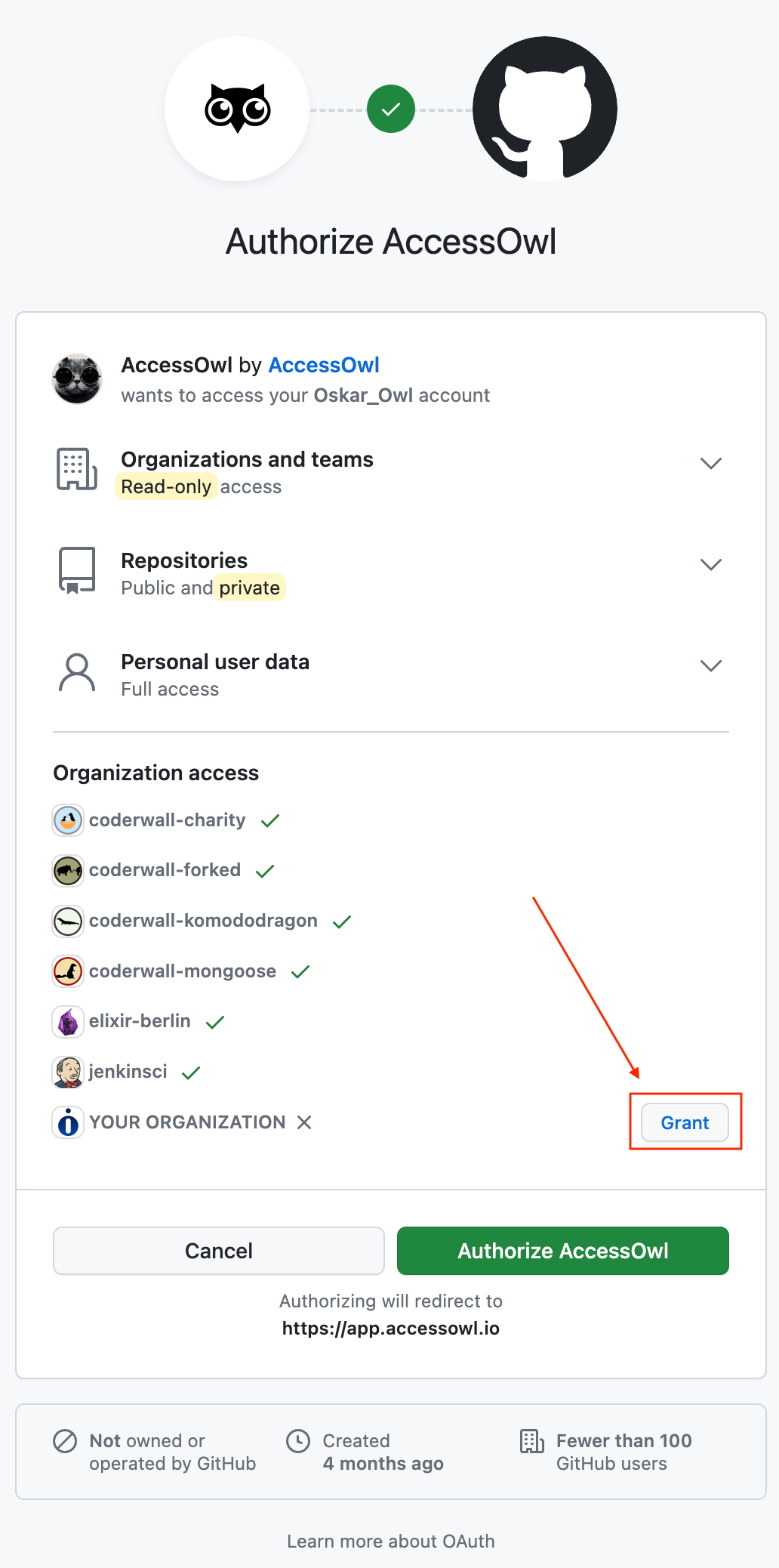
When connecting this integration, ensure that you click the *Grant* button for your organization.
 ## Multiple Organizations
If you have more than one GitHub organization, you can manage them all under a single AccessOwl integration. The user who connects the integration must have access to all the organizations you want to manage.
To add an additional organization, reconnect the integration (see below) and select all the organizations you want to manage during the OAuth grant step.
## Reconnecting
If you have not granted access to your organzation, you need to revoke access in Github first before
you can start reconnecting it in AccessOwl.
1. Go to [Authorized OAuth Apps](https://github.com/settings/applications) in Github, find *AccessOwl*
and revoke access.
2. In AccessOwl trigger the reauthentication flow by clicking [here](https://app.accessowl.io/integrations/auth/github).
If the reauthentication link or the **Retry** button brings you straight to the success screen without showing a GitHub authorization prompt, and the sync keeps failing, AccessOwl still holds an active GitHub grant. Revoke the AccessOwl app in GitHub first (step 1 above), then trigger the reauthentication again so the OAuth grant step actually runs.
## FAQ
No. AccessOwl cannot create, remove, or suspend GitHub accounts, including on GitHub Enterprise. GitHub access is tracked and reviewed in AccessOwl, but it is granted and revoked in GitHub by an admin.
This also applies during offboarding: the GitHub removal is reassigned to the [Application Admin](/guides/applications/admins-owners), who removes the member in GitHub and confirms the task in AccessOwl.
AccessOwl syncs every account that has access to the repositories in the connected organizations. That includes outside collaborators, and for a repository forked from a public or open-source project, the upstream contributors who carry over with the fork. These are real GitHub accounts with access, not a sync error.
If you only want to manage some of your organizations, scope the integration during the OAuth grant step, see [Multiple Organizations](#multiple-organizations).
GitHub does not expose member email addresses, so AccessOwl cannot auto-match GitHub accounts to your existing people by email the way it does for an integration like Google Workspace. Members are identified by their GitHub handle instead, which is why they arrive as Unidentified.
This does not reduce the value of the sync. You map each GitHub handle to the right person once, and from then on AccessOwl ties that handle's access back to the user for visibility and access reviews. The mapping persists across future syncs, so it is a one-time match per account, not something you redo on every sync.
The **Needs Attention** panel on the AccessOwl dashboard surfaces unassigned GitHub accounts, so you can spot handles that still need to be mapped to a person.
## Multiple Organizations
If you have more than one GitHub organization, you can manage them all under a single AccessOwl integration. The user who connects the integration must have access to all the organizations you want to manage.
To add an additional organization, reconnect the integration (see below) and select all the organizations you want to manage during the OAuth grant step.
## Reconnecting
If you have not granted access to your organzation, you need to revoke access in Github first before
you can start reconnecting it in AccessOwl.
1. Go to [Authorized OAuth Apps](https://github.com/settings/applications) in Github, find *AccessOwl*
and revoke access.
2. In AccessOwl trigger the reauthentication flow by clicking [here](https://app.accessowl.io/integrations/auth/github).
If the reauthentication link or the **Retry** button brings you straight to the success screen without showing a GitHub authorization prompt, and the sync keeps failing, AccessOwl still holds an active GitHub grant. Revoke the AccessOwl app in GitHub first (step 1 above), then trigger the reauthentication again so the OAuth grant step actually runs.
## FAQ
No. AccessOwl cannot create, remove, or suspend GitHub accounts, including on GitHub Enterprise. GitHub access is tracked and reviewed in AccessOwl, but it is granted and revoked in GitHub by an admin.
This also applies during offboarding: the GitHub removal is reassigned to the [Application Admin](/guides/applications/admins-owners), who removes the member in GitHub and confirms the task in AccessOwl.
AccessOwl syncs every account that has access to the repositories in the connected organizations. That includes outside collaborators, and for a repository forked from a public or open-source project, the upstream contributors who carry over with the fork. These are real GitHub accounts with access, not a sync error.
If you only want to manage some of your organizations, scope the integration during the OAuth grant step, see [Multiple Organizations](#multiple-organizations).
GitHub does not expose member email addresses, so AccessOwl cannot auto-match GitHub accounts to your existing people by email the way it does for an integration like Google Workspace. Members are identified by their GitHub handle instead, which is why they arrive as Unidentified.
This does not reduce the value of the sync. You map each GitHub handle to the right person once, and from then on AccessOwl ties that handle's access back to the user for visibility and access reviews. The mapping persists across future syncs, so it is a one-time match per account, not something you redo on every sync.
The **Needs Attention** panel on the AccessOwl dashboard surfaces unassigned GitHub accounts, so you can spot handles that still need to be mapped to a person.