> ## Documentation Index
> Fetch the complete documentation index at: https://docs.accessowl.com/llms.txt
> Use this file to discover all available pages before exploring further.
# Google Workspace as HRIS
> Use Google Workspace as your HRIS source in AccessOwl.
You can sync your HR system into Google Workspace and have AccessOwl treat Google Workspace as your HRIS. This passes employee data (such as manager, department, role, and custom fields) into Google Workspace, which AccessOwl reads as your HRIS source.
## Steps
Set up your HR system to provision employees and their data into Google Workspace. The exact steps depend on your HR system. For Rippling, see [Rippling](/integrations/all/rippling).
* Sign in to the [Admin Console](https://admin.google.com) as a super administrator.
* Go to **Directory → Users**.
* At the top, select **More options → Manage custom attributes**.
* Click **Add Custom Attribute**.
* Enter a **Category** name (this is your schema name, which you provide to AccessOwl when finalizing the setup) and add two fields of type **Date**: one for the start date and one for the end date. For example:
* `start_date`
* `end_date`
* Configure your HR system to fill these fields for each user, or set them manually for at least one user.
In the example below, the schema name (**Category**) is `AccessOwl`.
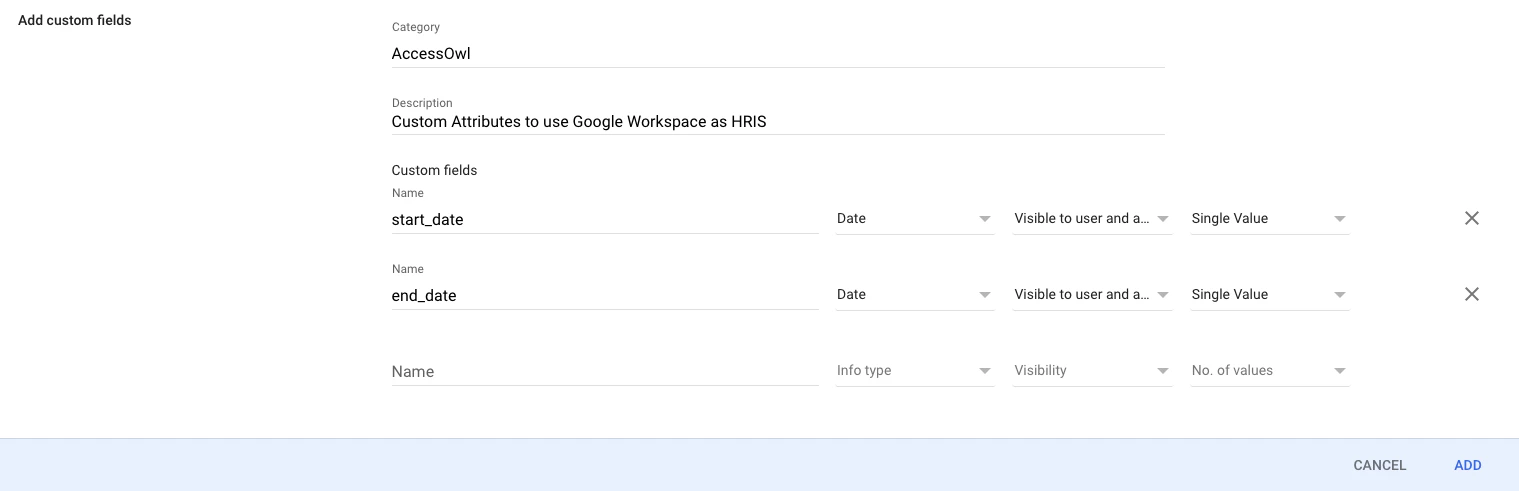 The field names above are examples. You can choose your own names, but you must use the same pair of fields for all users (employees and contractors alike) and provide AccessOwl with the exact names when finalizing the setup. AccessOwl configures the mapping to these names, so they must match what is in Google Workspace.
## Finalizing the setup with AccessOwl
After syncing your HR system with Google Workspace, contact AccessOwl support and provide:
* **Schema name** (shown as **Category** in the Google Admin Console)
* **Start date attribute name**
* **End date attribute name**
Before contacting AccessOwl support, make sure at least one user has a value set in the custom schema. AccessOwl can only discover and map the schema once it is in use.
Once configured, AccessOwl will:
* Automatically onboard users based on the start date field.
* Automatically offboard users based on the end date field.
* Sync all other fields (department, role, manager) from Google Workspace.
The field names above are examples. You can choose your own names, but you must use the same pair of fields for all users (employees and contractors alike) and provide AccessOwl with the exact names when finalizing the setup. AccessOwl configures the mapping to these names, so they must match what is in Google Workspace.
## Finalizing the setup with AccessOwl
After syncing your HR system with Google Workspace, contact AccessOwl support and provide:
* **Schema name** (shown as **Category** in the Google Admin Console)
* **Start date attribute name**
* **End date attribute name**
Before contacting AccessOwl support, make sure at least one user has a value set in the custom schema. AccessOwl can only discover and map the schema once it is in use.
Once configured, AccessOwl will:
* Automatically onboard users based on the start date field.
* Automatically offboard users based on the end date field.
* Sync all other fields (department, role, manager) from Google Workspace.