> ## Documentation Index
> Fetch the complete documentation index at: https://docs.accessowl.com/llms.txt
> Use this file to discover all available pages before exploring further.
# Zoom
AccessOwl integrates with Zoom to provision and deprovision user access in your Zoom account, and to keep your list of Zoom users and their permissions in sync.
## Capabilities
AccessOwl periodically syncs the permissions schema of an application.
AccessOwl periodically syncs a list of users along with their assigned permissions.
AccessOwl creates user accounts with the specified permissions during access requests.
AccessOwl removes users from your Zoom account during access revocations.
## Add Zoom App
1. Add a new application and select "Zoom" from the list of integrations.
2. In the integration assistant click on "Connect".
3. You will be redirected to Zoom to give AccessOwl permissions to access your Zoom account data. Login with your Zoom account.
4. Afterwards to get redirected back to AccessOwl. AccessOwl is successfully connected.
[Contact us](https://www.accessowl.com/contact/) in case you have any issues.
## Usage
We sync periodically user account data from Zoom. Furthermore we provide provisioning/deprovisioning capabilities that are integrated into AccessOwl. You don't need to configure something in the Zoom integration!
## Remove the app
1. Simply find the Zoom application in the applications list in AccessOwl.
2. Click on the edit icon.
3. Click on "Delete Application".
This will disconnect AccessOwl from Zoom and delete the application. AccessOwl will not be able to sync data or provision/deprovision accounts. Synced data remains so that you still have the overview who has/had access to what. If you want us to remove this data completely [contact us](https://www.accessowl.com/contact/). Anyway, when you delete your AccessOwl account we will remove ALL the data as described in our privacy policy.
## FAQ
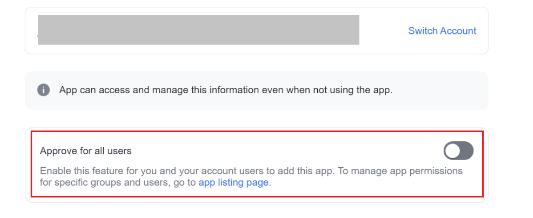 Make sure the **Approve for all users** toggle is enabled when authorizing AccessOwl.
If Zoom already has AccessOwl authorized, the re-auth link drops straight to the finish screen and skips the consent screen, so the **Approve for all users** toggle never appears.
1. In Zoom, open the AccessOwl app and click **Remove**. This only revokes the Zoom authorization, your AccessOwl setup stays intact.
2. Re-run the re-auth link.
3. On the authorization screen, turn on **Approve for all users**, then approve.
Make sure the **Approve for all users** toggle is enabled when authorizing AccessOwl.
If Zoom already has AccessOwl authorized, the re-auth link drops straight to the finish screen and skips the consent screen, so the **Approve for all users** toggle never appears.
1. In Zoom, open the AccessOwl app and click **Remove**. This only revokes the Zoom authorization, your AccessOwl setup stays intact.
2. Re-run the re-auth link.
3. On the authorization screen, turn on **Approve for all users**, then approve.