> ## Documentation Index
> Fetch the complete documentation index at: https://docs.accessowl.com/llms.txt
> Use this file to discover all available pages before exploring further.
# Manage applications via Google or Entra ID groups
> Connect an application with Google Workspace or Microsoft Entra ID so AccessOwl manages access through directory group membership
If access to an application is granted through membership in a Google Workspace or Microsoft Entra ID group, you can connect it in AccessOwl as an identity-provider-managed application. AccessOwl then grants and revokes access by adding or removing users from the linked directory groups, and your identity provider handles the actual sign-in or account provisioning, for example via SAML or SCIM. AccessOwl never changes accounts inside the application itself.
Using Okta? Okta-managed applications follow the same model, see [Okta-managed applications](/integrations/all/okta/okta-managed-apps).
## When to use this integration
Choose **Manage by Identity Provider** only when group membership is what actually grants access to the application. The typical case is a SAML application where being in the group is what enables the sign-in.
If users have accounts inside the application that need to be created, licensed, or removed individually, group membership alone does not manage their access. Connect the application through the integration account instead. The **Choose Integration** step shows the available options for each application and marks the recommended one.
## Before you start
* The directory group already exists in Google Workspace or Microsoft Entra ID, and its membership is what grants access to the application. You select from your existing groups, AccessOwl does not create them.
* The application is not already connected through another integration. An application uses either an identity provider or an integration account, never both at the same time.
## Connect an application
Go to **Applications**, click **New Application**, and select your application from the list.
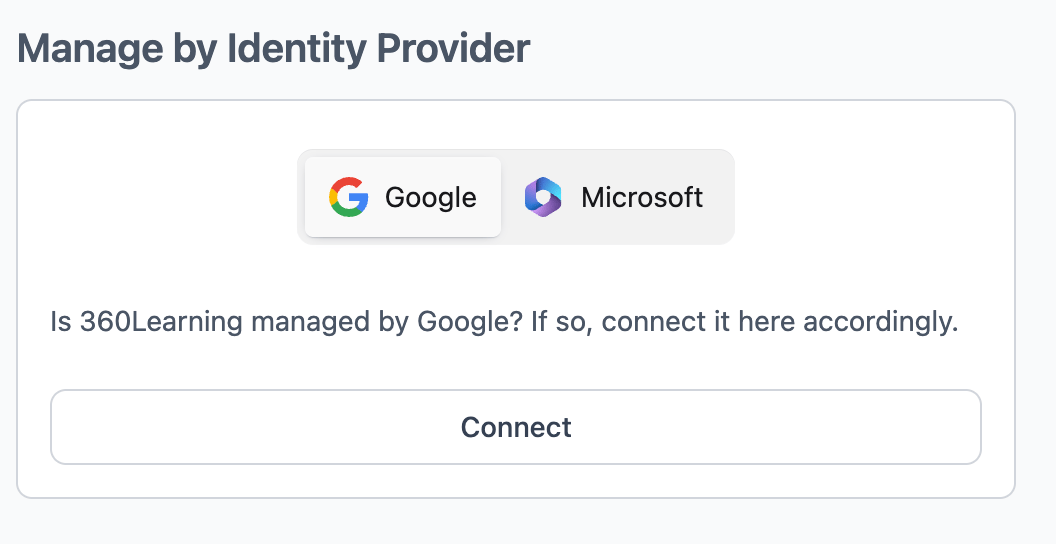
On the **Choose Integration** step, select your identity provider under **Manage by Identity Provider** and click **Connect**. The toggle shows the directories connected to your AccessOwl account.
 Connecting an application this way removes all permissions AccessOwl already tracked for it.
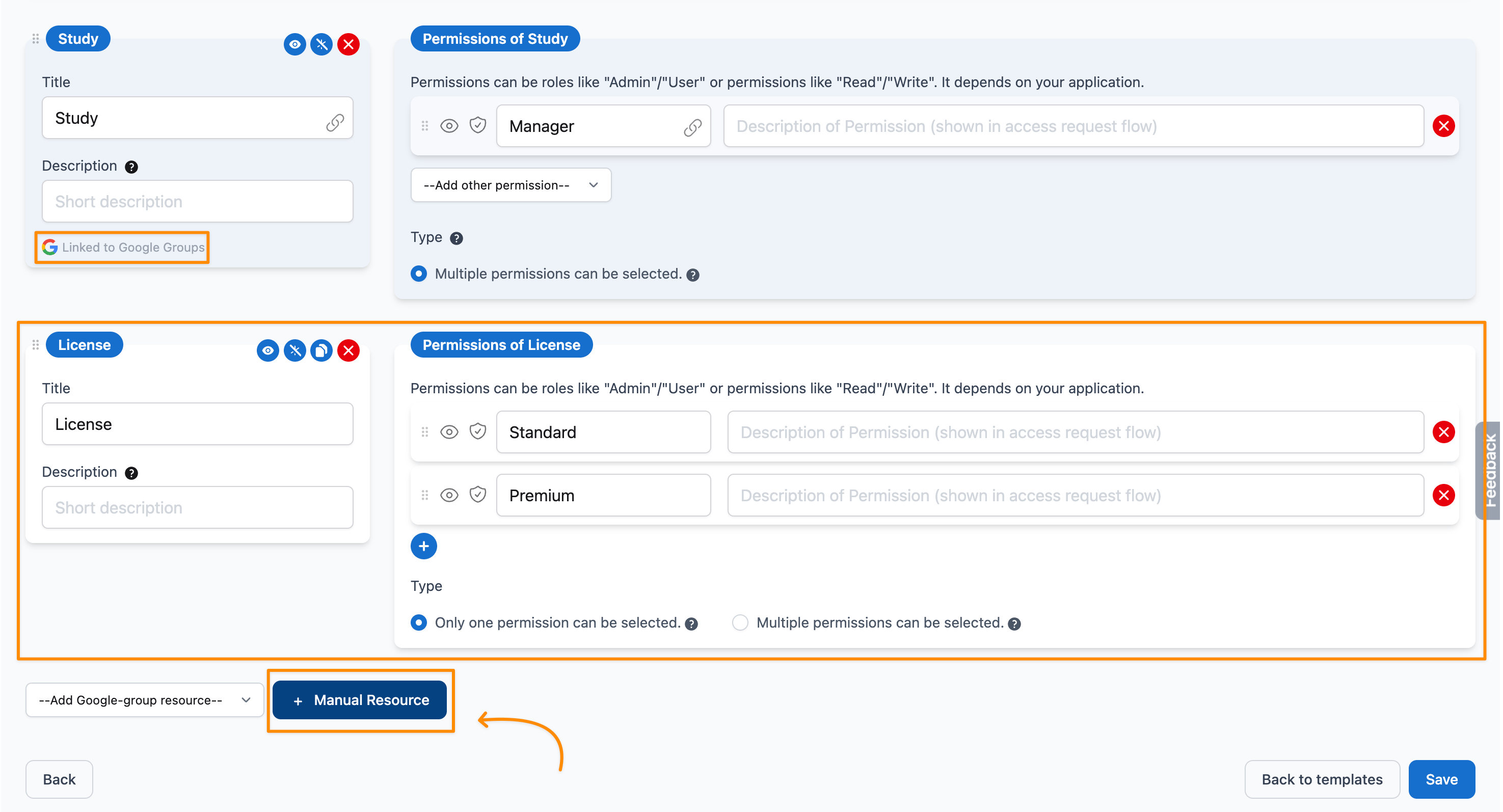
In the permission editor, add each group from the **Add Google-group resource** dropdown. Every linked group becomes its own resource, marked **Linked to Google Groups**, and its membership roles, for example Member, Manager, and Owner, can be added as requestable permissions with **Add other permission**. Double-check that the selected group is the one you intend.
Link at least one group. Without a linked group the application still shows as connected and synced, but there is nothing to add users to, so access requests cannot be fulfilled.
## How access works after setup
* When an access request is approved, AccessOwl adds the user to the linked group and your identity provider grants access.
* When access is revoked or the user is offboarded, AccessOwl removes the user from the group and access is withdrawn.
* Each linked group is a separate permission in AccessOwl, so one application can offer multiple access levels.
## Permissions not linked to a group
You can combine group-based provisioning with manually managed permissions on the same application. Use **Manual Resource** in the permission editor to add a resource that is not linked to a directory group. Its permissions are not provisioned automatically: when one is requested and approved, the task is assigned to the [Application Admin](/guides/applications/admins-owners) to complete manually.
For example, the **Study** resource below is linked to a Google group and granted automatically, while the manually added **License** resource is forwarded to the Application Admin, who assigns the license in the application.
Connecting an application this way removes all permissions AccessOwl already tracked for it.
In the permission editor, add each group from the **Add Google-group resource** dropdown. Every linked group becomes its own resource, marked **Linked to Google Groups**, and its membership roles, for example Member, Manager, and Owner, can be added as requestable permissions with **Add other permission**. Double-check that the selected group is the one you intend.
Link at least one group. Without a linked group the application still shows as connected and synced, but there is nothing to add users to, so access requests cannot be fulfilled.
## How access works after setup
* When an access request is approved, AccessOwl adds the user to the linked group and your identity provider grants access.
* When access is revoked or the user is offboarded, AccessOwl removes the user from the group and access is withdrawn.
* Each linked group is a separate permission in AccessOwl, so one application can offer multiple access levels.
## Permissions not linked to a group
You can combine group-based provisioning with manually managed permissions on the same application. Use **Manual Resource** in the permission editor to add a resource that is not linked to a directory group. Its permissions are not provisioned automatically: when one is requested and approved, the task is assigned to the [Application Admin](/guides/applications/admins-owners) to complete manually.
For example, the **Study** resource below is linked to a Google group and granted automatically, while the manually added **License** resource is forwarded to the Application Admin, who assigns the license in the application.
 ## Switching or disconnecting
To move an application away from group-based provisioning, whether you want to switch to the integration account or stop managing it this way altogether, archive the application using **Archived** on its edit screen, then add it again and choose the connection method you want. The link to the groups cannot be removed on its own, so archiving the application is the way to undo it.
Archiving an application closes every pending approval on that app. Any open access requests need to be raised again after the application is added back.
## FAQ
Applications where group membership is what grants access. SAML applications are usually a great fit, since being in the group is what enables the sign-in.
No. In this mode access is purely group membership. Anything managed inside the application itself, such as roles or paid licenses that are assigned separately from the group, stays with the application. If that is how your application works, connect it through the integration account instead, or track those extras on the same application as [permissions not linked to a group](#permissions-not-linked-to-a-group).
AccessOwl links groups that already exist in your directory. If no group currently controls access to the application, group-based management is likely not the right fit, and the integration account is the better path.
No. Each application is connected one way or the other. To change how an application is connected, see [Switching or disconnecting](#switching-or-disconnecting).
## Switching or disconnecting
To move an application away from group-based provisioning, whether you want to switch to the integration account or stop managing it this way altogether, archive the application using **Archived** on its edit screen, then add it again and choose the connection method you want. The link to the groups cannot be removed on its own, so archiving the application is the way to undo it.
Archiving an application closes every pending approval on that app. Any open access requests need to be raised again after the application is added back.
## FAQ
Applications where group membership is what grants access. SAML applications are usually a great fit, since being in the group is what enables the sign-in.
No. In this mode access is purely group membership. Anything managed inside the application itself, such as roles or paid licenses that are assigned separately from the group, stays with the application. If that is how your application works, connect it through the integration account instead, or track those extras on the same application as [permissions not linked to a group](#permissions-not-linked-to-a-group).
AccessOwl links groups that already exist in your directory. If no group currently controls access to the application, group-based management is likely not the right fit, and the integration account is the better path.
No. Each application is connected one way or the other. To change how an application is connected, see [Switching or disconnecting](#switching-or-disconnecting).