

Capabilities
Provisioning
AccessOwl creates user accounts with the specified roles/permissions during access requests.
Deprovisioning
AccessOwl removes members from the workspace during access revocations.
User Sync
AccessOwl periodically syncs a list of users along with their assigned roles/permissions.
Prerequisites
- Owner access in your ChatGPT Business or Enterprise workspace, so you can invite the integration account.
Setup
1
Add OpenAI ChatGPT in AccessOwl
Either add a new application or open Applications and click the +-symbol, then continue.
2
Invite the integration account as Owner
AccessOwl shows you the integration account’s email address. In ChatGPT:
- Open Workspace settings and go to the Members tab.
- Click Invite member.
- Enter the integration account’s email address.
- Set the role to Owner and choose a seat type.
- Send the invite.
The integration account needs Owner because only Owners can change member roles and seat types in a ChatGPT Business or Enterprise workspace. To provision users with the correct role and seat type, the integration account must hold Owner permissions.
FAQ
Do I need to provision both ChatGPT and Codex?
Do I need to provision both ChatGPT and Codex?
No. The ChatGPT seat already includes Codex, so anyone on a ChatGPT seat gets both. You assign one seat type per user, and “ChatGPT” is the one that covers both products. On June 24, 2026 OpenAI removed the separate seat type on the Business plan, so depending on your plan you may not see a seat type to choose at all, and provisioning a ChatGPT seat then provisions ChatGPT and Codex together.
Which ChatGPT seat types does AccessOwl support?
Which ChatGPT seat types does AccessOwl support?
AccessOwl supports both seat types OpenAI offers:
- ChatGPT: includes both ChatGPT and Codex.
- Codex: Codex only, billed pay-as-you-go.
AccessOwl in ChatGPT
AccessOwl is also published as an app inside ChatGPT. Once connected, anyone in your ChatGPT workspace can ask ChatGPT about the SaaS apps available in your organization and submit access requests directly from a ChatGPT conversation.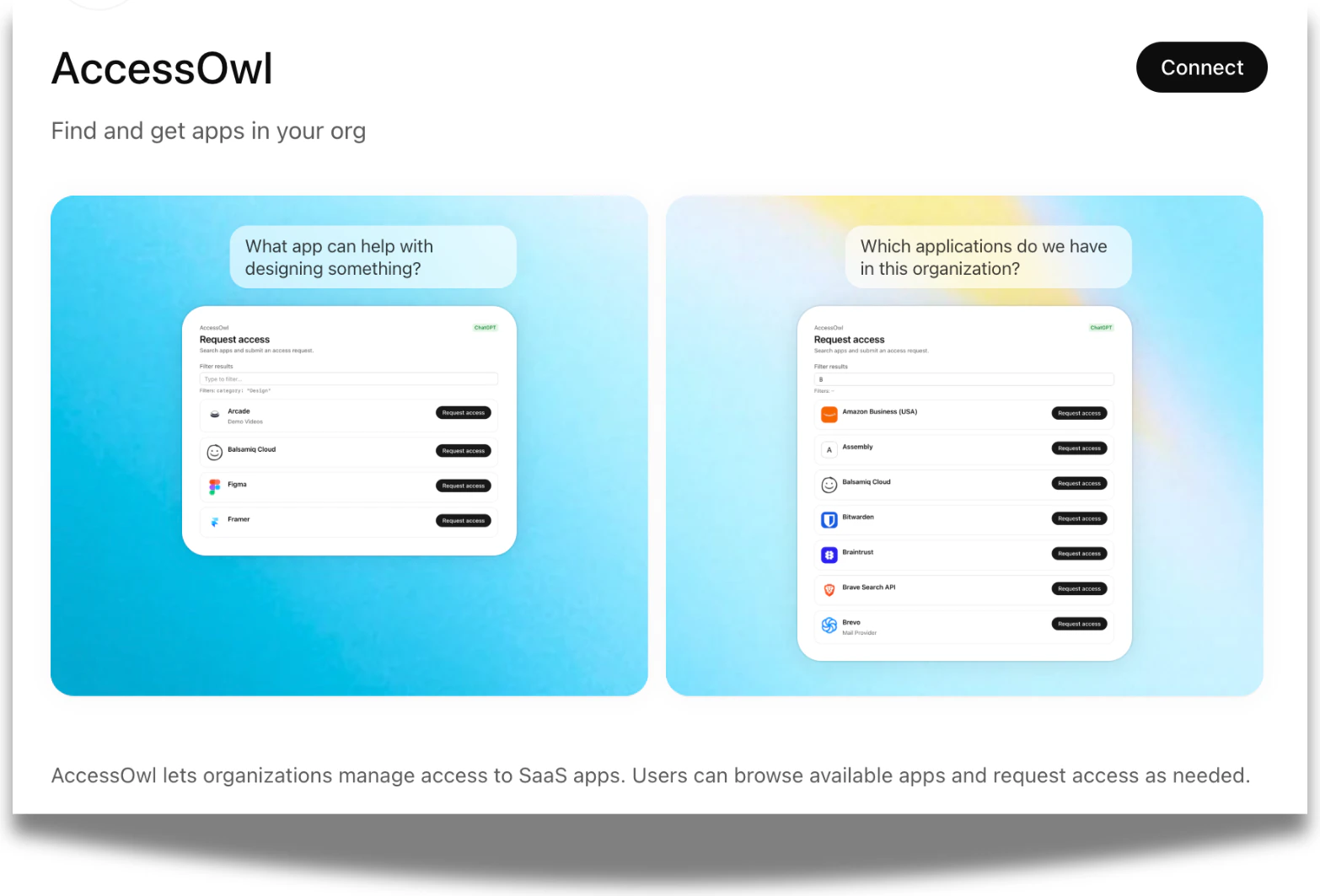
- “What app can help with designing something?”
- “Which applications do we have in this organization?”
Connect AccessOwl in ChatGPT
1
Open the ChatGPT app directory
In ChatGPT, open Settings > Apps, or use the Apps entry in the sidebar.
2
Find AccessOwl
Search the directory for AccessOwl (“Find and get apps in your org”).
3
Click Connect
Click Connect on the AccessOwl app page and complete the authorization flow to link it to your AccessOwl tenant.